Поиск по сообщениям в этом блоге

Loading
Показаны сообщения с ярлыком google docs. Показать все сообщения

понедельник, 25 апреля 2011 г.

Новый функционал загрузки файлов в Google Docs


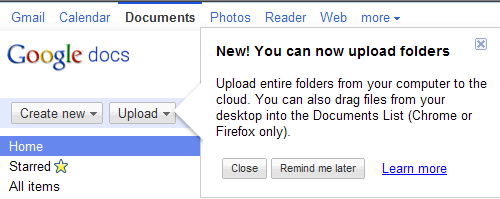
В Google Docs добавлены три дополнительные функции для упрощения загрузки файлов: загрузка папок, интеграция в список документов загрузочных функций и функции перетаскивания (drag-and-drop).
Более подробно об этих функциях:
• Для последних версий браузеров Chrome, Firefox и Safari стала доступна возможность загрузки папок (с сохранением существующей структуры папок, включая подпапки, в коллекциях) через новое меню загрузки (для Firefox и Safari потребуется установка небольшого апплета).
• Функционал страницы загрузки объединен со списком документов и доступен через выпадающее меню (при использовании функции в окне в правом нижнем углу списка документов отображается прогресс загрузки). Настройки преобразования файлов в формат Google Docs или конвертации изображения для оптического распознавания символов (OCR) производятся через выпадающее меню загрузки или всплывающее окно. К сожалению, новые возможности загрузки не поддерживают возможности выбора языка при преобразовании документа с помощью OCR (Optical Character Recognition) или выброра настроек видимости перед загрузкой (для использования этих функций можно использовать старую версию загрузочной страницы, выбрав пункт "Основные..." из меню загрузки).
• При использовании Chrome, Safari или Firefox на Mac или PC доступна возможность перетаскивания (drag-and-drop) одного или нескольких файлов непосредственно в список документов или в коллекцию слева для начала загрузки (возможности загрузки методом drag-and-drop для папок нет в связи с браузерными ограничениями).

Отправлено пользователем Express через Google Reader:

источник: Docs Blog, Автор: Google Docs, дата: 25.04.11

Last November, we added the ability to drag and drop files from your desktop to the upload page, improving the ability to upload any file. Over the next few weeks, we're releasing three additional features to make it easy to upload files to Docs: folder upload, documents list integration, and drag-and-drop upload.

To start, we've added folder upload via the new Upload menu in the latest versions of Chrome, Firefox and Safari.


You'll need to install a small applet to use folder upload in Firefox and Safari. The existing folder structure is preserved on upload which means that folders within folders will also upload and become collections within collections.

Second, we've merged the upload page's functionality into the documents list to create a much better upload experience. When you upload files via the new drop-down menu, a window will pop up in the bottom right of your documents list and show upload progress.


Once files are uploaded, they will appear in your documents list within seconds. You can also share them from the pop-up. Uploaded files go into the currently selected collection and have visibility set to private unless the collection is shared.

Upload settings have also moved. The first time you use the new upload method, you'll see a pop-up asking you whether you want to convert files to the Google Docs format and if you want to convert images via Optical Character Recognition (OCR). You can always return to these settings via the drop down in the upload menu or the pop-up.


Lastly, if you are using Chrome, Safari and Firefox on your Mac or PC, you'll also be able to drag-and-drop one or more files directly into your documents list to initiate an upload. You can even drop files directly into a collection on the left. Note due to browser limitations it isn't possible to drag-and-drop folders directly into the documents list.


If you hit your storage limit, the upload will return an error and you'll need to delete files or purchase additional storage for Google Docs for $0.02 per GB per month ($0.25 per GB per year). Please note that the new upload capabilities don't support the ability to select a language when converting a document via OCR (Optical Character Recognition) or select visibility settings before upload. If you'd like to use these features, you can still use the older version of the upload page by choosing Basic... from the Upload menu.


We'll be rolling this out to everyone with personal Google Accounts over the next month in all Google Docs languages. Rapid Release Google Apps users can expect to see the feature rolled out shortly thereafter. You'll know when the features are available to you when you see a popup message at the top of your documents list.

If you have any additional questions about the upcoming changes to uploading files, check out our FAQ.

Posted by: Mike Procopio, Software Engineer

Здесь вы можете:

вторник, 1 марта 2011 г.

Оптическое распознавание символов (OCR) в Google Docs на 34 языках

В Google Docs дополнительно к пяти ранее введенным с июня 2010 года языкам (английскому, французскому, итальянскому, немецкому и испанскому), для которых возможно оптическое распознавание символов (OCR), были добавлены еще 29 языков.

На сегодняшний день перечень языков с поддержкой оптического распознавания символов в Google Docs состоит из следующих тридцати четырех:
• английский
• болгарский
• венгерский
• вьетнамский
• голландский
• греческий
• датский
• индонезийский
• испанский
• итальянский
• каталанский
• китайский (упрощенный)
• корейский
• латышский
• литовский
• немецкий
• норвежский
• польский
• португальский
• румынский
• русский
• сербский
• словацкий
• словенский
• тайский
• турецкий
• украинский
• филиппинский
• финский
• французский
• хорватский
• чешский
• шведский
• японский

Для использования функции распознавания символов в изображениях и PDF-файлах в Google Docs при их загрузке необходимо отметить в чекбоксе опцию "Преобразовывать текст из PDF-файлов или изображений в формат Документов Google", затем выбрать нужный язык документа из раскрывающегося меню и произвести загрузку для обработки.


Стоит особо отметить, что, вероятно, на сегодняшний день это единственный онлайн OCR-сервис распознавания таких символов, как китайские иероглифы, тайские буквы и некоторые другие (к сожалению, пока не хватает арабского языка и других наиболее актуальных и достаточно распространенных). Как известно, основное и главное преимущество облачного онлайн-сервиса в том, что для использования его функций не требуется установка ПО на компьютер пользователя.

Одним из недостатков использования online OCR в сервисе Google Docs пока все так же остается отсутствие удобных инструментов управления данной функцией (например, отсутствие таких возможностей как распознавание многоязычного текста, использования OCR для уже загруженных ранее документов или изменения языка после загрузки документа и т. д.). Тем не менее, распознанный текст можно сразу и перевести, используя через меню Инструменты интегрированную в сервис функцию перевода без необходимости копирования и вставки текста в Google Translate или Google Translator Toolkit (хотя в последнем имеется более богатый инструментарий).

Google обещает продолжать добавлять дополнительные языки в OCR-сервис и при этом повышать скорость и качество распознавания символов для уже существующих.


Отправлено пользователелем Anonymous через Google Reader:

источник: Docs Blog, Автор: Google Docs, дата: 28.02.11

Last June, we introduced the ability to upload documents into Google Docs using Optical Character Recognition (OCR). OCR analyzes images and PDF files, typically produced by a scanner (or the camera of a mobile phone), extracts text and some formatting and allows you to edit the document in Google Docs.

We've gotten a lot of feedback on this feature, and one of the biggest requests was to add support for additional languages. Today, we're happy to announce that we've added support for 29 additional character sets, including those used in most European languages, Russian, Chinese Simplified and some other Asian languages. See the upload page for the full list.

How does it work? When uploading your images and PDF files using Google Docs, tell us what language your documents are in:


Hit upload, and we'll use this information to search for the right characters in your file. As usual, you will get best results with sharp, high-resolution images or PDF files. This update will also result in an improvement in OCR quality for languages that we've supported previously (English, French, Italian, German, Spanish). We've also made improvements to the way we import formatting from your documents, and are now doing a better job in preserving font and alignment information.


We'll keep adding languages and at at the same time will continue to improve speed and accuracy for the existing ones. In the meantime, we hope you take advantage of this new way to import your data into Google Docs.

Posted by Jaron Schaeffer, Software Engineer

Здесь вы можете:

пятница, 18 февраля 2011 г.

12 новых расширений файлов для просмотра через Google Docs Viewer

В Google Docs Viewer добавлена возможность просмотра двенадцати новых типов файлов (помимо ранее имевшихся для документов PDF, Microsoft Word, презентаций PowerPoint):
• Microsoft Excel (.XLS и .XLSX)
• Microsoft PowerPoint 2007 / 2010 (.PPTX)
• Apple Pages (.PAGES)
• Adobe Illustrator (.AI)
• Adobe Photoshop (.PSD)
• Autodesk AutoCad (.DXF)
• Scalable Vector Graphics (.SVG)
• PostScript (.EPS, .PS)
• TrueType (.TTF)
• XML Paper Specification (.XPS)

Отправлено пользователем ­­­­­­­­­­­­ через Google Reader:

источник: Docs Blog, Автор: Google Docs, дата: 19.02.11

Cross posted on the Official Gmail blog
The Google Docs Viewer is used by millions of people every day to quickly view PDFs, Microsoft Word documents and PowerPoint presentations online. Not only is viewing files in your browser far more secure than downloading and opening them locally, but it also saves time and doesn't clutter up your hard-drive with unwanted files.

Today we're excited to launch support for 12 new file types:
  • Microsoft Excel (.XLS and .XLSX)
  • Microsoft PowerPoint 2007 / 2010 (.PPTX)
  • Apple Pages (.PAGES)
  • Adobe Illustrator (.AI)
  • Adobe Photoshop (.PSD)
  • Autodesk AutoCad (.DXF)
  • Scalable Vector Graphics (.SVG)
  • PostScript (.EPS, .PS)
  • TrueType (.TTF)
  • XML Paper Specification (.XPS)
Not only does this round out support for the major Microsoft Office file types (we now support DOC, DOCX, PPT, PPTX, XLS and XLSX), but it also adds quick viewing capabilities for many of the most popular and highly-requested document and image types.

In Gmail, these types of attachments will now show a "View" link, and clicking on this link will bring up the Google Docs Viewer.


You can also upload and share these files in Google Docs, so that anyone can view the content using their browser.

And as always, the Google Docs Viewer is available for use on any website, with both a full Chrome and embedded option. More information can be found here.

Posted by: Anil Sabharwal, Product Manager

Здесь вы можете:

понедельник, 31 января 2011 г.

Обновления в Google Docs

В целях упрощения управления файлами различных типов в Google Docs были изменены функционал и интерфейс.
Основные изменения следующие:
• На Главной странице представлено содержание, добраться до которого требуется наиболее часто и просто (при необходимости можно скрыть элементы в этом режиме просмотра, но они по-прежнему будут доступны в режиме просмотра "Все файлы").
• Папки в левой навигационной панели заменены на Коллекции.
• Добавлен ряд фильтров, позволяющий сузить область поиска по типу, видимости и другим критериям (к сожалению, дополнительные операторы поиска не визуализированы).
• Добавлена сортировка по приоритету, присутствующая во всех представлениях (подобно приоритетным Входящим в Gmail), а также другие порядки сортировки (по заголовку, наличию пометок, по дате последнего изменения или открытия).
• Добавлена панель информации на правой стороне списка документов, на которой доступен предварительный просмотр миниатюр (видео-файлы могут проигрываться непосредственно из панели) и сведения об элементе.
• Удалена возможность отметки нескольких элементов списка через чек-боксы: чтобы выполнить операцию с несколькими элементами, необходимо удерживать нажатой клавишу Ctrl (PC) или Command (Mac) и выбирать необходимые строки.
• Папка с закладками Google Chrome теперь стала недоступна для просмотра.
Как говорится в описании к новым функциям, подробнее о новом списке Документов Google можно узнать в Руководстве по началу работы, но на представленной по ссылке странице области изображения для получения информации о различных разделах пока не активны.

Прежний интерфейс в случае необходимости пока еще остается доступным при добавлении параметра ui=1 в адресную строку (при этом на отображение папки с закладками Google Chrome это не влияет - она остается недоступной и в этом режиме).

Отправлено пользователем Anonymous через Google Reader:

источник: Docs Blog, Автор: Google Docs, дата: 31.01.11

Over the past year, many of you have been taking advantage of the ability to upload any file to Google Docs. With more files and of a variety of file types in one place, it becomes more difficult to organize and find what you need quickly. As a result, we are happy to announce that, over the next couple of days, we'll be rolling out a refresh to the documents list, aimed to make it more useful to find, explore and share all your files stored 100% on the web.


First, we added a number of filters in this refresh, making it easier to narrow your search by type, visibility state, and other criteria. We also added priority sorting as a option in all views. Priority sorting is like Gmail's Priority Inbox, in that we look at a number of signals to put your most relevant files at the top of the list. And you can still use other sort orders like Last Modified Date or by Name.


This update will also improve the experience of exploring and browsing your files. We added a preview panel on the right side of the document list, so that you can see a preview thumbnail, sharing settings and more at a glance. And if the file is a video, you can start playing it directly from the preview panel or from the recently announced video player.


To make it easier to view photos, you can now click on the magnifying glass on a photo to open a full screen slide-show viewer.


There is also a new view called Home. The contents of the Home view are controlled by you so that the content you access the most often is easier to get to. You can remove files from the Home view by right clicking the file and selecting Don't show in home to hide them. And when you need them, these files can always be found later by selecting All items or using search.

You may also notice Collections have replaced Folders in the left navigation bar. Collections are designed to combine the best features of labels and folders. A file can live in multiple collections, just like with Gmail labels. Collections can also be stored hierarchically, just like folders on your desktop. And of course, collections can be shared, just like you can share docs.

Along with the improved find-ability and browsing experience, we streamlined the interface. For example, instead of using checkboxes to select multiple files, you can just use your Shift or Control (Cmd on Macs) keys.

That's not all. We've also been working hard on increasing the speed of the documents list by overhauling our back-ends to make things snappier.

This refresh is rolling out now and should be available to everyone over the next couple days. For Google Apps for Business customers that don't have "Enable pre-release features" box checked, this refresh will be coming in a few weeks.

Once the refresh is rolled out to your account, take the in-product tour and let us know what you think.

Posted by: Posted by Vijay Bangaru, Product Manager

Здесь вы можете:

вторник, 28 сентября 2010 г.

Дополнительные инструменты для просмотра изменений документов в Google Docs

В Google Docs введен новый интерфейс просмотра истории изменений в документах. Колонка с историей изменений отображается справа от документа, если в раскрывающемся меню "Файл" нажать пункт "Посмотреть историю изменений".

Отправлено пользователем Anonymous через Google Reader:

источник: Docs Blog, Автор: Google Docs, дата: 28.09.10

We're happy to announce that a new revision history interface is now available in Google documents. To see it, go to File > See revision history.

In the new revision history interface, you can see what changes were made at a glance.


Click on a time stamp in the right column to see what changes were made at a given time or use the arrow keys to quickly scan through many revisions.


Changes are color-coded based on each collaborator, making it easy to tell what has been added or deleted. For example, in the screenshot below, James (whose edits are highlighted in orange) deleted and added text while bmichael61 (whose edits are highlighted in green) removed a paragraph and added a comment.


Time stamps are also improved in the new interface. We've heard requests for time to always be listed, even for very old revisions and we're listening: you can now tell afternoon edits apart from all-nighters.

The interface also batches revisions into groups of changes to make it easier to understand how a document has changed over time. To see a finer-grained list of revisions, click Show more detailed revisions.


This is just a first step for the new revision interface for Google Docs. We're looking forward to more revision improvements in the future. Let us know what you think in the comments.

Posted by: Vance Vagell, Software Engineer

Здесь вы можете:

пятница, 24 сентября 2010 г.

Улучшенная функция импорта файлов в Google Docs

В Документах Google улучшено диалоговое меню при импорте файлов, предлагающее расширенные опции загрузки и обработки файлов.

Отправлено пользователем Anonymous через Google Reader:

источник: Docs Blog, Автор: Google Docs, дата: 23.09.10

A spreadsheet without data and numbers in it can get pretty lonely, which is why it's important to be able to easily import files full of data. Today we've improved the import dialogue to give you a full range of options of where to put that data. You can get to the new Import dialog from the File menu.

For example, when importing a .csv file, you can create a whole new spreadsheet, append to the current sheet, add a new sheet to your existing spreadsheet or even replace your entire spreadsheet with this new version.

Now with the new custom delimiters option, you can also specify what character to parse your data file with, giving you maximum flexibility when dealing with your data files.

And finally we spruced up the dialog with a preview pane giving you a first glimpse to see how your imported data will look in your spreadsheet so you can make any changes if necessary.


Happy importing!

PS: If you're using Google Apps for your school or business, join us for a live webinar on Monday September 27th for a review of all the new Google Docs features we launched this quarter.

Posted by: Ben Mann, Software Engineering Intern

Здесь вы можете:

четверг, 26 августа 2010 г.

В таблицах Google Docs появилась возможность работы с раскрывающимися списками

В Google Spreadsheets появилась долгожданная функция, позволяющая работать со списками элементов в ячейке в виде раскрывающегося меню, которая реализована через проверку данных.
Для создания списка необходимо выбрать нужную ячейку, кликнуть правой клавишей мыши по этой ячейке, выбрать в появившемся меню "Проверить данные...", затем из раскрывающегося списка "Критерии" выбрать "Элементы из списка" и создать необходимый список.

Отправлено пользователем Anonymous через Google Reader:

источник: Docs Blog, Автор: Google Docs, дата: 26.08.10

Today, we added in-cell dropdown and validation to spreadsheets. This makes it easy to constrain the values of an individual cell to a specific range or list. For example, if you are building a trip planning spreadsheet, you can now limit the options in the travel destination column to a select set of cities via dropdown lists.

In-cell dropdowns also make input easier by reducing unnecessary typing and errors in processing. You can create dropdown lists in individual cells through the data validation tool by validating against a range of cells in your sheet or by creating a custom list.


Follow these steps to create an in-cell dropdown list through validation against a range.
  1. Enter data into a range of cells.
    • For example, create a list of destinations on your spreadsheet.
  2. Select the cell(s) you would like to validate.
  3. Under the Tools menu, select Data validation...
  4. Change the Criteria to 'Items from a list.'
  5. Click the button next to the 'Create list from range' option and select the range of cells you entered data in during Step 1.
  6. Click Save and the cell you chose to validate will have a dropdown arrow in it with the data in your cell range as the potential input values. If you want, you can set a cell to allow invalid data.
You can also create a in-cell dropdown using a custom list.
  1. Under the Tools menu, select Data validation...
  2. Change the Criteria to 'Items from a list.'
  3. Click the button next to the 'Enter list items' option.
  4. Enter a set of custom values, separated by commas. For example, you could enter "San Francisco, New York, Chicago and Los Angeles."
  5. Click Save and the cell you selected will have a dropdown list with the values you entered as potential input values.
Let us know what you think in the comments.

Posted by: Li-Wei Lee, Software Engineer

Здесь вы можете: